
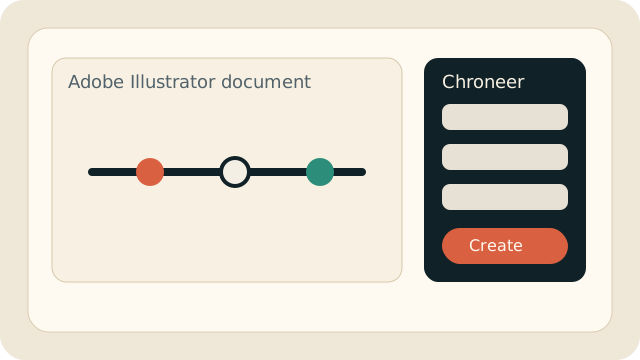
Chroneer Chroneer Illustrator Timeline Tools
Help

How to use Chroneer in Illustrator.

This page is intended both for customers and Adobe reviewers. It explains the current workflow, the main controls, and the practical limits of the current release.

Open the panel in Illustrator

1. Open the panel

Launch Adobe Illustrator, open a document, and open the Chroneer extension panel from the installed extensions menu.
Configure the timeline settings

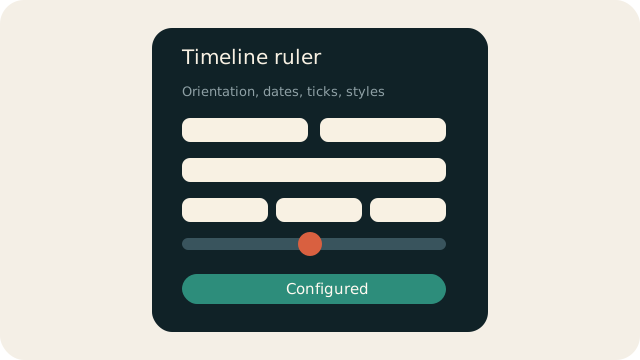
2. Set the options

Choose the object type, orientation, date range, granularity, tick counts, sizes, colors, label styles, and label formats.
Generate centered artwork on the artboard

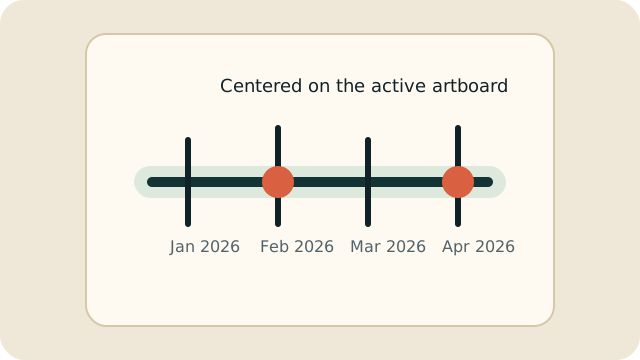
3. Create the object

Click the create button. Chroneer generates the object centered on the active artboard and groups related artwork into logical subgroups.

Current workflow

  1. Open or create an Illustrator document.
  2. Open the Chroneer panel.
  3. Select the object type. Timeline ruler is the primary production workflow.
  4. Choose horizontal or vertical orientation.
  5. Set start and end dates or times.
  6. Adjust main, secondary, and tertiary tick counts.
  7. Set width, height, rail overhang, and tick heights.
  8. Optionally adopt width or height from the active artboard.
  9. Choose colors, character style names, label formats, and label angle.
  10. Click the create button to generate the artwork.

Important controls

  • Object type Timeline ruler, calendar strip, or event band.
  • Artboard size adopt buttons Pull the current artboard width or height directly into the size fields.
  • Character style names Reuse an existing Illustrator character style or create it automatically if it does not exist.
  • Label format fields Use tokens such as {MMM}, {YYYY}, {D}, or {HH}:{mm}.

What gets created

  • Centered placement New artwork is placed in the middle of the active artboard.
  • Grouped structure Axis, rail fill, ticks, markers, and labels are organized into separate groups.
  • Named label styles Generated labels use named Illustrator character styles.
  • Stored metadata The created group stores generator settings in the Illustrator note field.

Known limitations

Recommended first-use settings

For an easy first test, create a horizontal timeline ruler with a monthly range, moderate tick density, default styles, and artboard-based width.

Object type Timeline ruler
Orientation Horizontal
Range January 1, 2026 to April 30, 2026
Main labels {MMM} {YYYY}